









































































inner-banner

How to Edit Videos for Free Using CapCut Like a Pro

July 14, 2026

Free Video Editing with CapCut: What You Need to Know Before You Start

CapCut free edit is possible right now — no payment required, no watermark, and no software to install.

Here's a quick overview of how it works:

  1. Go to capcut.com or download the mobile or desktop app
  2. Sign up for free — no credit card needed
  3. Upload your video from your device, Google Drive, or Dropbox
  4. Edit using AI tools — trim, add subtitles, remove backgrounds, and more
  5. Export in up to 4K without a watermark for personal or commercial use

CapCut has over 1 billion downloads on Google Play and is used by creators, marketers, and business teams around the world. It's built by ByteDance — the same company behind TikTok — and it's packed with AI-powered features that used to cost serious money in professional software.

Whether you're making a 30-second social clip or a full promo video, CapCut gives you a surprisingly complete toolkit at zero cost.

That said, it's not perfect for everyone. There are real questions worth asking — about privacy, commercial licensing, and how it stacks up against alternatives — before you make it your go-to tool.

I'm Miranda Motlow, founder of Motlow Pro Media, where I've spent over a decade producing short-form and long-form video content for brands in Tampa, Florida — and tools like CapCut free edit have changed what's possible for lean teams and corporate marketers alike. Let's break down exactly how to use it well.
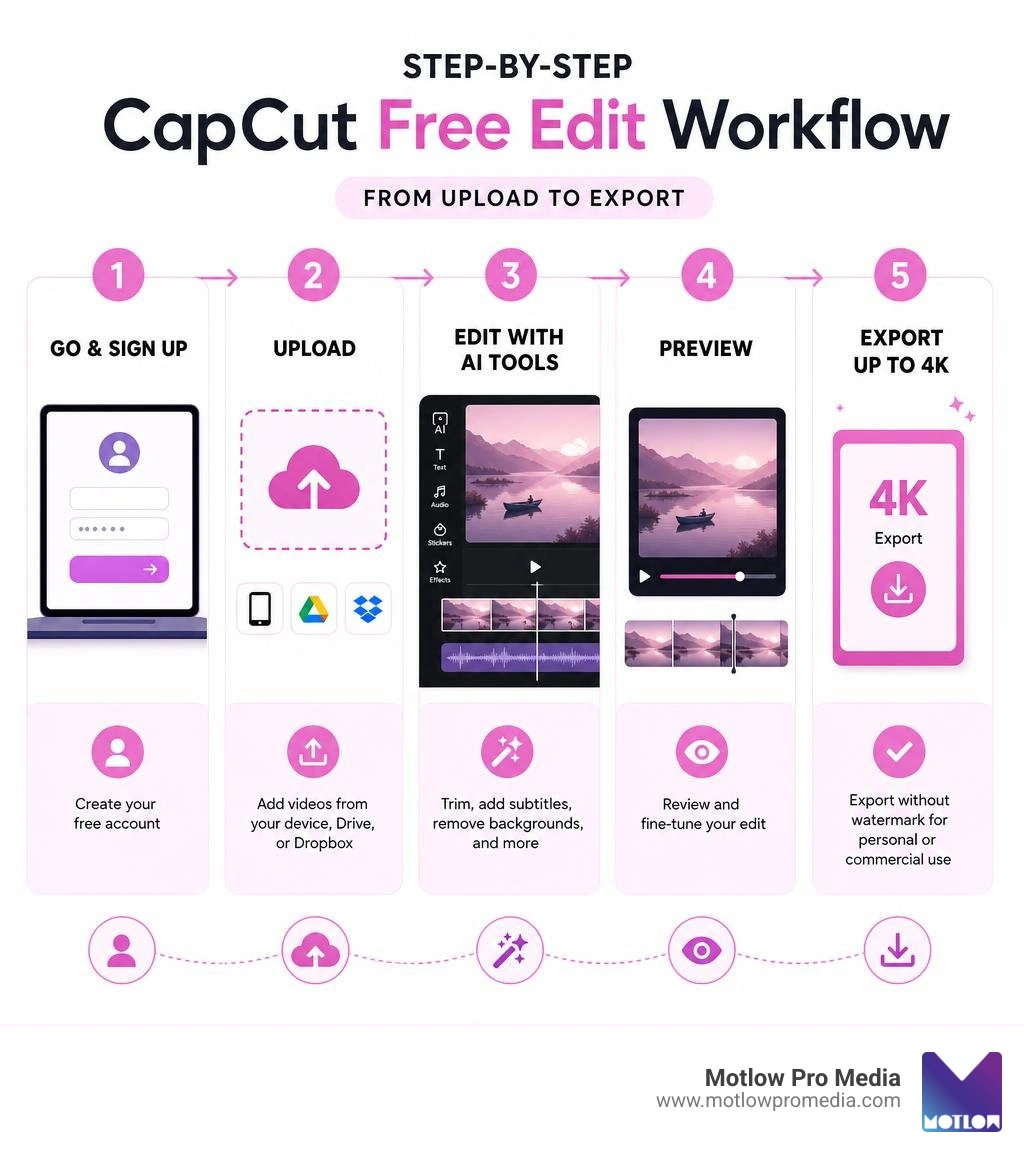
Step-by-step CapCut free edit workflow from upload to export infographic

What is CapCut and Why is it the Go-To Free Editor?

If you have spent any time scrolling on social media recently, you have already seen CapCut in action. Developed by ByteDance, the parent company of TikTok, CapCut has grown from a simple mobile companion app into a massive cross-platform editing ecosystem.

As of July 2026, CapCut boasts over 1 billion downloads on Google Play, backed by a massive 12.8 million user reviews. While it holds a 3.6-star rating on Google Play due to occasional performance complaints on older mobile devices, it shines brightly on the iOS App Store with a 4.6 out of 5 rating across 1.1 million ratings.

Why is it so incredibly popular? The secret lies in its user-friendly interface. Traditional video editing suites look like the cockpit of a fighter jet. They are intimidating, expensive, and require hours of training just to make a simple cut. CapCut flips this script by offering a beginner-friendly workspace with zero learning curve, while still packing advanced creative tools under the hood.

Furthermore, CapCut is genuinely cross-platform. You can start a capcut free edit on your phone during your morning commute, refine it on your laptop in your browser, and finish it on your desktop app at the office.

  • Web Browser Editor: You can access the browser version directly via CapCut's official web platform. There is no download required, making it perfect for quick edits on Chromebooks, work laptops, or any computer where you cannot install software.
  • Mobile App (iOS & Android): Available on the App Store and Google Play, this version is optimized for touch controls, quick templates, and direct sharing to social media platforms.
  • Desktop App (macOS & Windows): For heavier projects, the desktop app leverages your computer's local hardware (GPU) to handle complex timeline editing, higher resolutions, and smoother playback.

The system requirements are surprisingly modest. The web editor runs smoothly on almost any modern browser (Chrome, Edge, Safari, Firefox), while the desktop app requires a standard multi-core processor and at least 8GB of RAM to handle 4K edits without lagging.

Mastering the CapCut Free Edit: Key Features and Capabilities

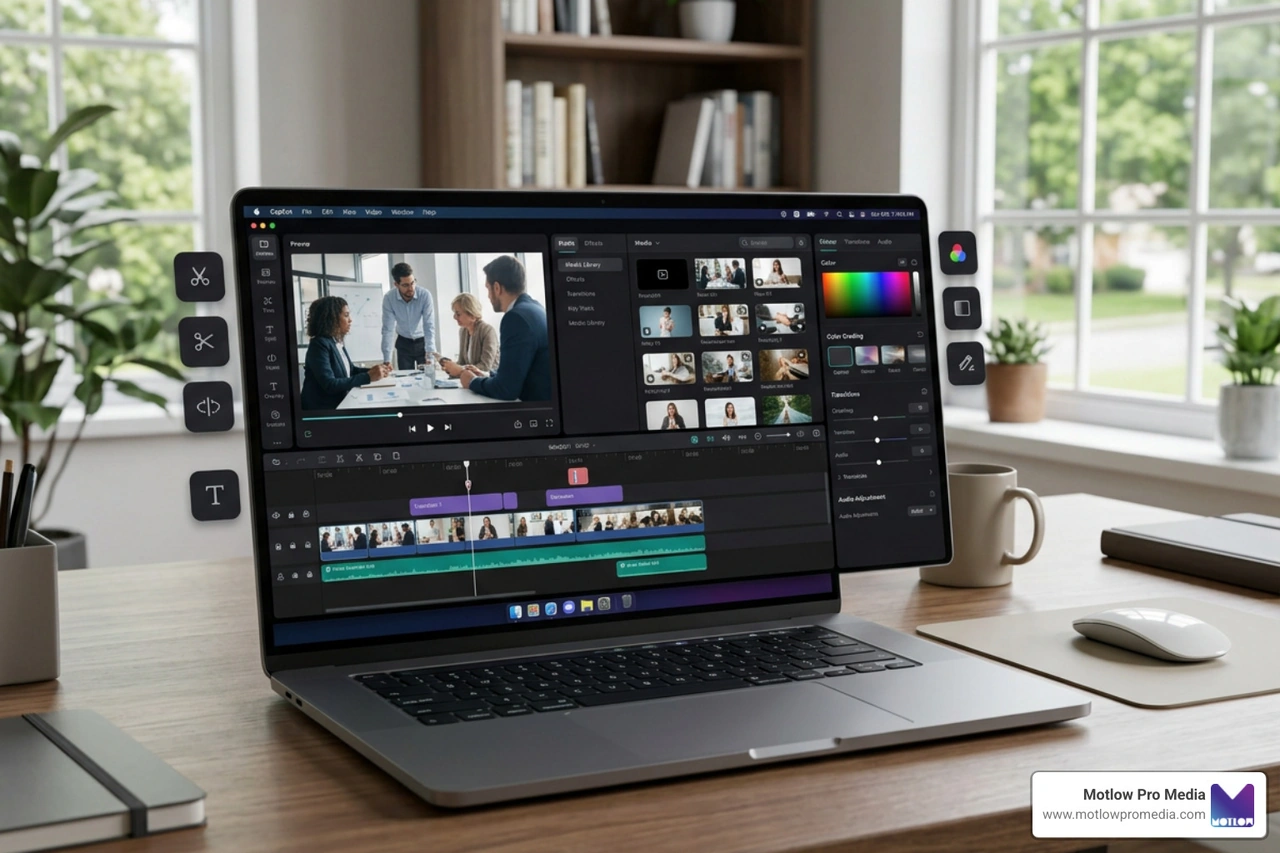
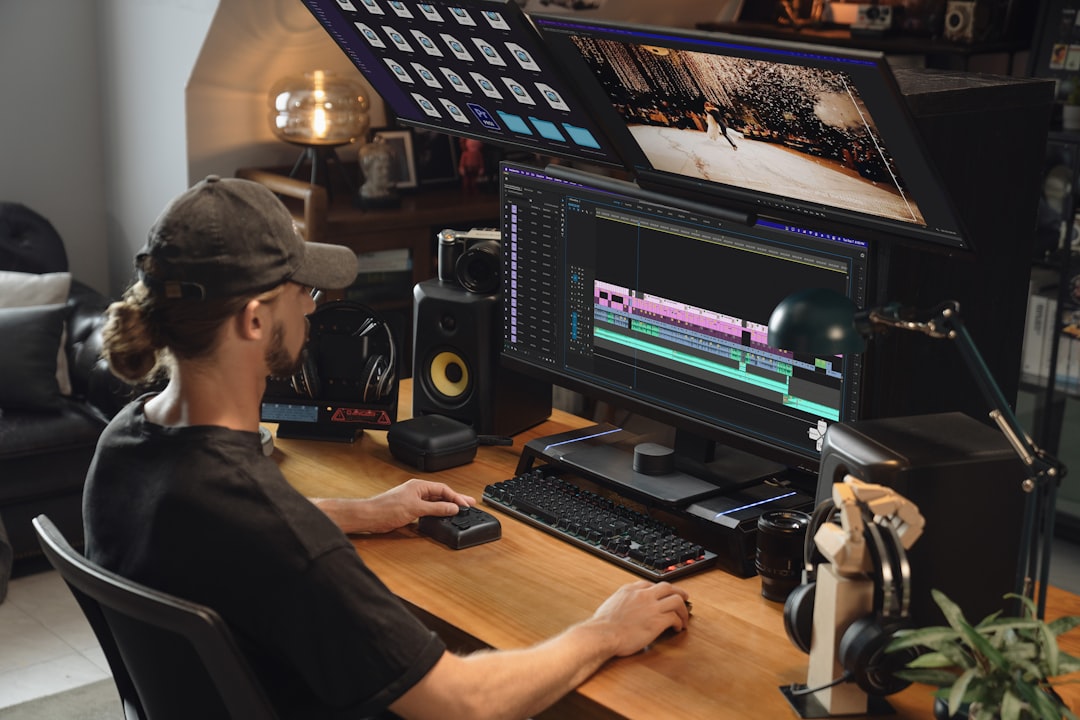
To truly edit like a pro, you need to understand the tools at your disposal. When you open CapCut's online video editor, you are greeted by a clean, modern multi-track timeline. This timeline is where the magic happens, allowing you to layer video clips, audio tracks, text overlays, and visual effects on top of one another.

Multi-track timeline interface in CapCut online editor

Let's look at the core features that elevate CapCut from a basic trimmer to a professional-grade editor:

  • Basic Editing Tools: You can split, trim, merge, and reverse clips with a single click. Speed adjustments are highly customizable; you can speed up or slow down footage from 0.1x to 100x and apply dynamic speed curves to create cinematic transitions.
  • Keyframe Animation: This is a game-changer for free software. Keyframing allows you to animate almost any property of your video over time. You can create custom zooms, pan across an image, fade text in and out, or move graphics across the screen manually.
  • Chroma Key (Green Screen): Easily isolate and remove specific colors from your footage to place yourself or your subjects in entirely new environments.
  • Video Stabilization: If you shot shaky handheld footage on your phone, CapCut's built-in stabilization tool uses smart algorithms to smooth out the bumps, giving you a steady, professional look.
  • Cloud Storage & Collaboration: CapCut offers secure cloud storage to back up your projects. It also supports real-time cloud collaboration, allowing team members to view, comment on, and edit the same project files from different devices.
  • Custom Export Options: When your edit is complete, you can export your project in resolutions up to 4K at 60fps with smart HDR color tuning. This ensures your video looks crisp and professional regardless of which platform you upload it to.

How to Start Your First CapCut Free Edit

Ready to dive in? Here is our step-by-step guide to starting and finishing your very first capcut free edit project:

  1. Upload Your Media: Open the editor and import your video clips, photos, and audio files. You can upload directly from your computer or phone, or connect your Google Drive or Dropbox accounts to pull assets straight from the cloud.
  2. Arrange on the Timeline: Drag and drop your clips onto the main track. Use the magnetic snap feature to align them perfectly.
  3. Trim and Split: Hover over the edges of your clips to trim them, or position the playhead and click the "Split" icon to cut a clip in half. Delete any unwanted segments to keep your video tight and engaging.
  4. Apply Transitions: Smooth out the cuts between your clips by clicking the "Transitions" tab. Drag a transition (like a classic fade, camera blur, or dynamic zoom) directly between two clips on the timeline.
  5. Add Filters and Effects: Browse the weekly updated library of trending effects (like glitch, 3D zoom, and cinematic color filters) to give your video a cohesive aesthetic.
  6. Extract and Edit Audio: If you want to use the audio from an existing video clip, right-click the clip on your timeline and select "Extract Audio." You can then edit the sound track independently, add fade-ins, or adjust volume levels. You can also browse millions of free music clips and sound effects directly inside the app. For mobile users, you can grab the app via CapCut - Video Editor - Apps on Google Play to edit on the go.

Leveraging AI Tools in Your CapCut Free Edit

Where CapCut truly leaves traditional editors in the dust is its suite of built-in, AI-powered tools. These features automate tedious tasks that used to take human editors hours to complete.

  • Auto Subtitles (Speech-to-Text): With near-perfect accuracy, CapCut can listen to your video's audio and automatically generate synchronized on-screen captions. It supports multiple languages and allows you to style all subtitles at once with custom fonts, colors, and animations.
  • Text-to-Speech: If you do not want to record your own voiceover, you can type out your script and let CapCut's AI convert it into natural-sounding speech. There are dozens of AI voices to choose from, ranging from standard narrative tones to energetic social media characters.
  • Video Background Removal: This is pure magic. With a single click, CapCut's AI can isolate a person in a video and completely remove the background — no green screen required.
  • AI Image and Video Generators: Need a specific background graphic or visual element that you don't have on hand? Use the built-in AI generators to create high-quality assets simply by typing a text prompt.
  • Voice Enhancer and Noise Reduction: If you recorded your audio in a noisy environment, like a busy cafe or outdoors on a windy day, CapCut's AI can filter out background hums and enhance your voice to make it sound like it was recorded in a professional studio.

Limitations, Watermarks, and Commercial Use Rules

While a capcut free edit offers incredible value, we need to talk about the catch. No tool is 100% free without some limitations, and understanding these constraints will save you from major headaches down the road.

First, let's address the watermark question. If you edit your video using the free web version or desktop application, you can export your video completely watermark-free. However, if you use the mobile app, CapCut will automatically add a short outro clip featuring their logo. Fortunately, you can easily delete this outro clip from your timeline before exporting, or toggle it off in the mobile app settings.

The real limitations lie in the distinction between personal and commercial use.
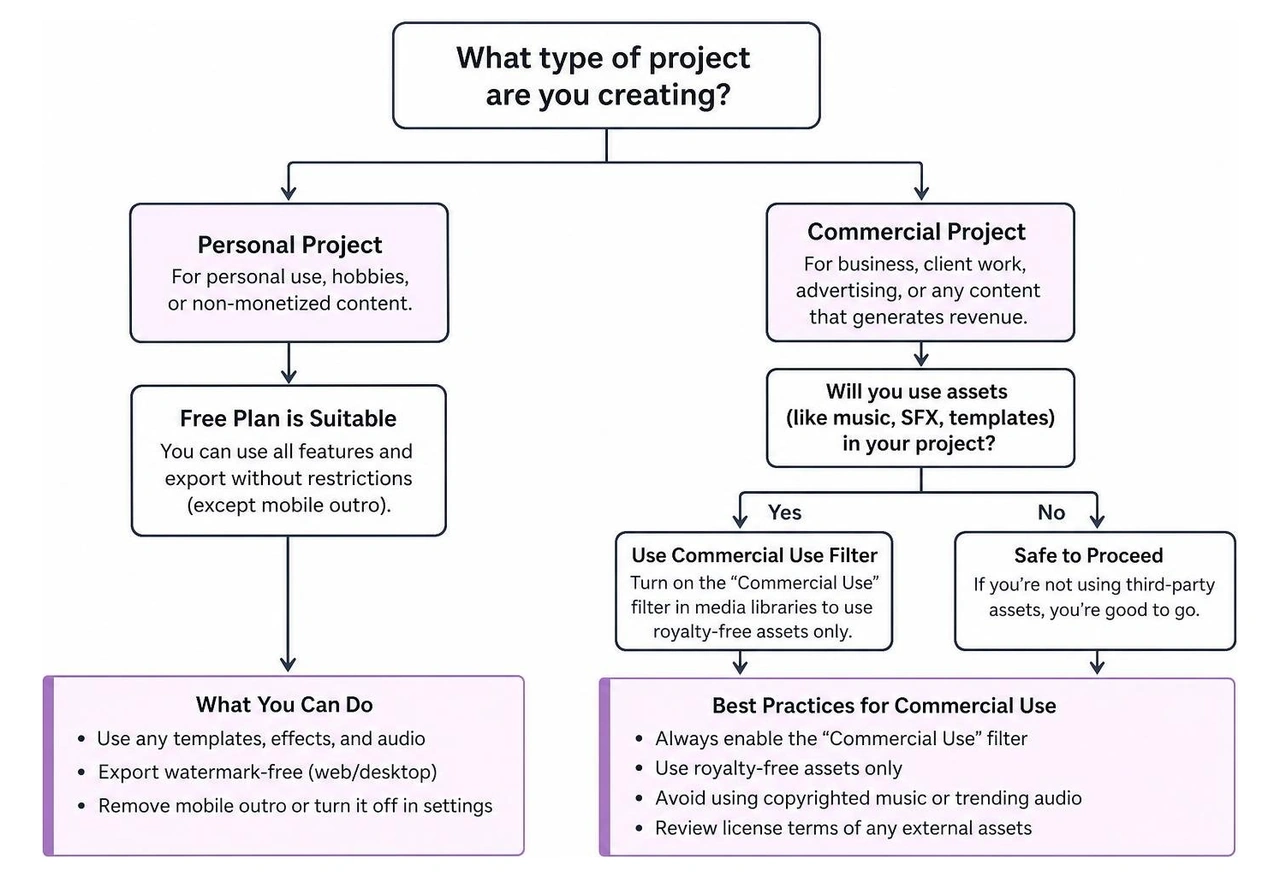
Decision flowchart for using CapCut for commercial vs personal projects

Many of the trendy audio tracks, sound effects, and video templates available in CapCut are licensed strictly for personal use. If you use a trending pop song in a promo video for your Tampa-based business, you run a high risk of getting your video flagged, muted, or taken down for copyright infringement.

To help you navigate this, CapCut includes a "Commercial Use" filter in their media libraries. When editing business content, always toggle this filter on to ensure you are only using royalty-free assets.

Here are some other common user complaints and limitations to keep in mind:

  • In-App Purchases (CapCut Pro): While the base editor is free, ByteDance has locked some of the most advanced transitions, visual effects, and AI tools behind a paid "Pro" subscription. If you accidentally use a Pro asset on your timeline, CapCut will prompt you to upgrade before allowing you to export.
  • Performance Issues: On older mobile phones or lower-end computers, the app can struggle when handling large 4K files, sometimes resulting in lag, stuttering playback, or unexpected crashes.
  • ByteDance Privacy and Data Concerns: Because CapCut is owned by ByteDance, it is subject to the same data privacy scrutiny as TikTok. The app requests permissions to access your media library, location, and device information. If you work in a corporate environment with strict data-compliance standards, these data-tracking practices are a critical point to discuss with your IT department.

How CapCut Compares to Free and Open-Source Alternatives

How does CapCut stack up against other popular video editing tools? Let's compare it to two prominent free options: Canva and WannaCut.

  • Canva: Canva is a highly popular, browser-based design platform that includes a built-in video editor.
    • The Pros: Canva excels at content ownership and data privacy. They explicitly guarantee that they do not claim ownership of your designs or train their AI models on your uploaded media without permission. Canva also offers 5GB of free cloud storage and real-time team collaboration without requiring a login.
    • The Cons: Canva's video editor is quite basic. It relies on a simple storyboard layout rather than a true multi-track timeline, making it difficult to perform complex keyframing, advanced audio extraction, or precise frame-by-frame cuts.
  • WannaCut: If you are looking for a completely free, open-source, and privacy-focused alternative, WannaCut is a project worth watching. Built with a high-performance Rust backend and a React frontend, WannaCut is designed specifically as a desktop-native CapCut alternative for Linux and Windows users.
    • The Pros: It is entirely free, contains zero ads, requires no internet connection, and stores all data locally on your machine. It features a professional multi-track timeline, keyframe properties, and smart project management.
    • The Cons: It is still actively under development (Beta version 0.3.0) and currently has a small community (249 stars on GitHub). It lacks the massive library of pre-made templates and cloud collaboration tools that make CapCut so convenient.

Frequently Asked Questions about CapCut

Is CapCut completely free to use without a watermark?

Yes! You can perform a capcut free edit and export your video without a watermark. On the web and desktop versions, exports are watermark-free by default. On the mobile app, you simply need to select the default "ending" clip on your timeline and delete it before hitting export, or disable the automatic ending in your app settings.

Can I use CapCut for professional business videos?

Yes, you can use CapCut to create professional promo videos, slideshows, and social media ads. However, you must be careful with licensing. Make sure to toggle on the "Commercial Use" filter in the music, sound effects, and template tabs to ensure you do not use copyrighted material that could lead to legal issues for your business.

What is the best open-source alternative to CapCut?

The most promising open-source alternative is WannaCut. It is a professional-grade, privacy-focused desktop editor built with Rust and React for Windows and Linux. Because it is open-source, your data remains entirely on your local machine, making it a great choice for privacy-conscious editors.

Conclusion

At the end of the day, CapCut is an incredibly powerful tool that democratizes video production. It allows anyone to create high-quality, engaging content without a steep learning curve or a massive software budget.

However, while a capcut free edit is perfect for quick social media clips, personal vlogs, and basic business promos, professional video production often demands a higher level of strategy, scale, and polish.

That is where we come in. At Motlow Pro Media, based right here in Tampa, Florida, we specialize in high-impact corporate media production, live event support, and comprehensive short-form content strategy. We partner with businesses to act as a seamless, trusted extension of their internal teams — providing a "hands-off, but hands-on" experience that ensures your brand's story is told beautifully, professionally, and without any of the technical headaches.

If you are ready to elevate your brand's video content beyond the templates, we would love to help. More info about our media services is available on our website, where you can explore how we can bring your creative vision to life.

Lates Article

Real Collaboration, Your Way

Some clients want to give notes in a live Zoom call. Others prefer a group text or email thread. However you like to communicate, we adapt. You’ll never be left guessing where things stand - and you’ll always have a say before anything goes out the door.

Five people smiling and posing with cameras in front of a Hard Rock Cafe Tampa backdrop, two electric guitars visible on the sides.

Ready to make it happen?

Custom Quote Request Form
Man in black shirt and headset standing with arms crossed in front of a Seminole Hard Rock Hotel & Casino Tampa advertisement showing slot machines and two women celebrating.

Prefer to talk it out instead?

Call Us